
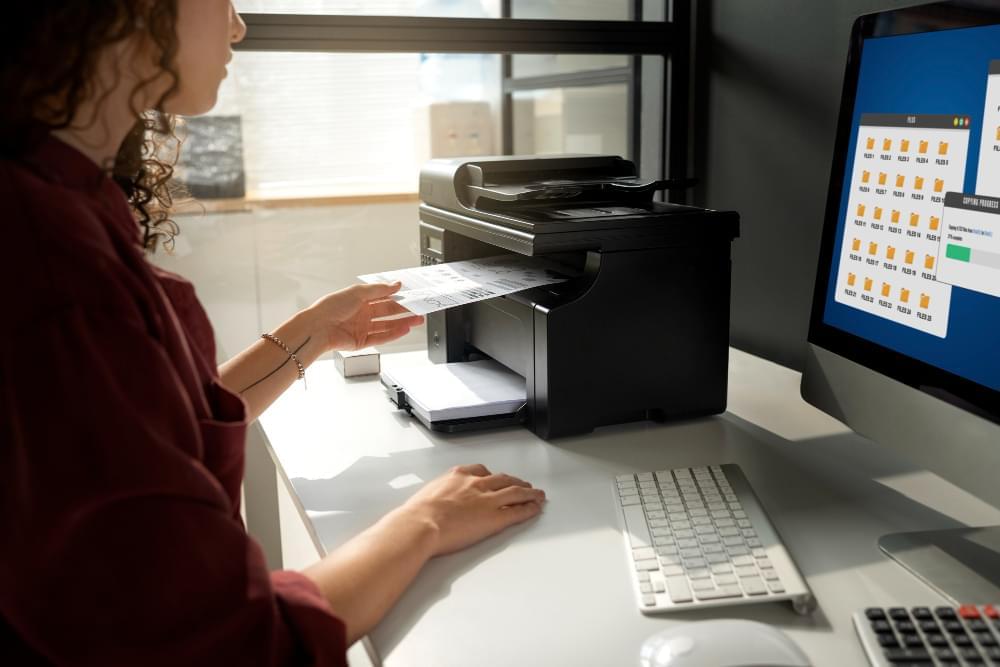
To add a printer to this computer, turn on the printer and connect it to the same WiFi network or via USB cable. Open Settings > Printers & Scanners, click Add a printer or scanner, and select your device. Follow on-screen instructions to install drivers and complete setup successfully.
Add a Printer to This Computer – Complete Step-by-Step Guide
Adding a printer to your computer is one of the most essential tasks for home users, students, and office professionals. Whether you are installing a brand-new printer or reconnecting an existing one, understanding the correct setup process ensures smooth printing without technical issues.
This complete guide explains everything you need to know about how to add a printer to this computer, including Windows setup, Mac installation, wireless configuration, USB connection, troubleshooting, and frequently asked questions.
Why Adding a Printer Correctly Is Important
Proper printer installation ensures:
- Reliable communication between computer and printer
- Fast and error-free printing
- Access to advanced printer features
- Stable wireless connectivity
- Reduced printer offline issues
If a printer is not installed correctly, you may experience connection failures, print queue errors, or missing driver problems.
Types of Printers You Can Add
Before starting installation, identify your printer type:
- USB Printer – Connected using cable
- Wireless Printer – Connected via WiFi
- Network Printer – Shared over local network
- Bluetooth Printer – Connected via Bluetooth
The installation method depends on the connection type.
System Requirements Before Adding a Printer
- Computer powered on
- Printer turned on
- Internet connection (for driver download)
- WiFi network (for wireless printers)
- Printer driver software (if required)
How to Add a Printer to This Computer on Windows 11
Method 1: Add Printer Automatically
- Click the Start button.
- Open Settings.
- Select Bluetooth & Devices.
- Click Printers & Scanners.
- Click Add Device.
- Select your printer from the list.
Windows will automatically install the required drivers.
Method 2: Add Printer Manually
If your printer does not appear:
- Click Add manually.
- Select “Add a printer using TCP/IP address or hostname.”
- Enter the printer’s IP address.
- Follow on-screen instructions.
How to Add a Printer to This Computer on Windows 10
- Open Settings.
- Click Devices.
- Select Printers & Scanners.
- Click Add a printer or scanner.
- Select the printer when it appears.
How to Add a USB Printer
USB printers are the easiest to install.
- Connect the USB cable to your computer.
- Turn on the printer.
- Windows will detect it automatically.
- Wait for driver installation to complete.
If not detected, install drivers manually from manufacturer’s website.
How to Add a Wireless Printer
Step 1: Connect Printer to WiFi
- Use printer control panel.
- Select WiFi setup.
- Choose your network name.
- Enter WiFi password.
Step 2: Add Printer on Computer
Follow Windows automatic installation steps described earlier.
How to Add a Network Printer
If the printer is shared over a network:
- Open Control Panel.
- Select Devices and Printers.
- Click Add Printer.
- Choose “The printer that I want isn’t listed.”
- Select shared printer option.
How to Add a Printer Using IP Address
- Open Printers & Scanners.
- Click Add Printer.
- Select “Add manually.”
- Choose TCP/IP option.
- Enter printer IP address.
This method is useful when automatic detection fails.
How to Add a Printer on Mac
Automatic Setup
- Click Apple Menu.
- Select System Settings.
- Click Printers & Scanners.
- Click Add Printer.
- Select printer from list.
Manual Setup Using IP
- Open Printers & Scanners.
- Click Add Printer.
- Choose IP tab.
- Enter printer IP address.
Installing Printer Drivers
If your system does not automatically install drivers:
- Visit official manufacturer website.
- Search your printer model.
- Download latest driver.
- Run installer file.
- Restart computer.
Set Printer as Default
- Open Printers & Scanners.
- Select printer.
- Click Set as Default.
Common Problems While Adding a Printer
- Printer not detected
- Driver installation failed
- Printer shows offline
- Network connection error
Troubleshooting Printer Installation Issues
Restart Devices
Turn off printer, computer, and router. Restart and try again.
Update Windows
Go to Settings > Windows Update and install latest updates.
Restart Print Spooler
- Press Windows + R.
- Type services.msc.
- Restart Print Spooler service.
Disable Firewall Temporarily
Sometimes firewall blocks printer detection.
Benefits of Adding Printer Correctly
- Smooth printing performance
- Access to full printer features
- Reduced connectivity errors
- Better print quality control
Best Practices for Printer Setup
- Keep drivers updated
- Maintain stable WiFi connection
- Assign static IP for wireless printers
- Update printer firmware regularly
Frequently Asked Questions (FAQ)
1. Why can't I add a printer to this computer?
Possible reasons include driver issues, network problems, or incorrect settings.
2. How do I manually add a printer?
Use the TCP/IP address option in printer settings.
3. Do I need internet to add a printer?
No, but internet may be required to download drivers.
4. Why is my printer not showing up?
Check WiFi connection and ensure printer is powered on.
5. How do I connect a printer via USB?
Plug in USB cable and wait for automatic driver installation.
Conclusion
Learning how to add a printer to this computer is essential for smooth printing. Whether you are installing a USB, wireless, or network printer, following proper setup steps ensures reliable performance.
If automatic setup does not work, manual installation using IP address or driver download can resolve most issues. Always keep drivers updated and maintain stable network connectivity for best results.
With the right approach, adding a printer to your computer becomes simple, quick, and stress-free.