
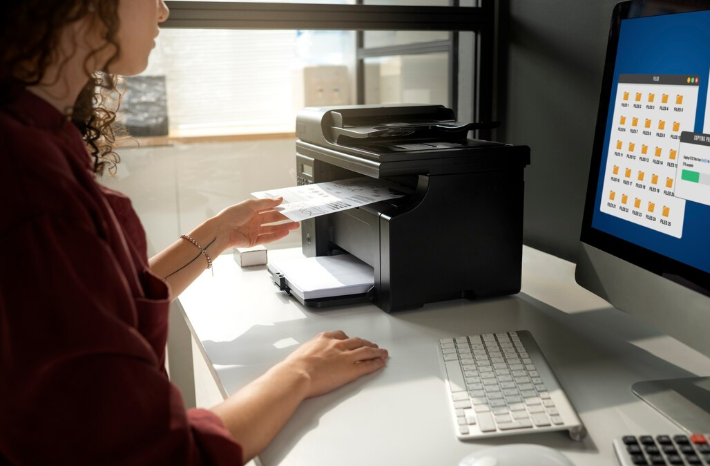
To connect a printer to a Mac, turn on the printer and connect it to the same WiFi network as your Mac. Open System Settings, select Printers & Scanners, and click Add Printer. Choose your printer from the list and click Add. Install drivers if prompted to complete setup.
How to Connect Printer to Mac: Complete Step-by-Step Guide
Connecting a printer to your Mac allows you to print documents, photos, emails, and other files easily. Whether you are setting up a new printer or reconnecting an existing one, macOS makes the process simple. You can connect a printer to a Mac using a USB cable (wired connection) or through WiFi (wireless connection).
This complete guide explains both methods in detail, along with troubleshooting tips and frequently asked questions.
Before You Begin
- Ensure your printer is powered on.
- Make sure your Mac is updated to the latest macOS version.
- Have your WiFi network name and password ready (for wireless setup).
- Keep the USB cable ready (for wired setup).
Method 1: Connect Printer to Mac Using WiFi (Recommended)
Wireless setup allows you to print without cables and connect multiple devices to the same printer.
Step 1: Connect Printer to WiFi
- Turn on your printer.
- Open the printer’s Network or Wireless Settings.
- Select Wireless Setup Wizard.
- Choose your WiFi network.
- Enter the WiFi password.
- Wait for confirmation that the printer is connected.
Step 2: Add Printer to Mac
- Click the Apple Menu.
- Select System Settings (or System Preferences).
- Click Printers & Scanners.
- Click Add Printer, Scanner, or Fax.
- Select your printer from the list.
- Click Add.
Your Mac will automatically install necessary drivers if available.
Method 2: Connect Printer to Mac Using USB Cable
If your printer does not support WiFi or if wireless setup fails, use a USB connection.
- Turn on your printer.
- Connect the USB cable between your printer and Mac.
- Open System Settings.
- Click Printers & Scanners.
- Select your printer when it appears.
- Click Add.
macOS usually detects the printer automatically and installs drivers.
Method 3: Install Printer Driver Manually
If your Mac does not detect the printer automatically:
- Visit the printer manufacturer’s official website.
- Search for your printer model.
- Download the latest macOS-compatible driver.
- Install the driver.
- Restart your Mac.
- Add the printer again in Printers & Scanners.
How to Set Printer as Default on Mac
- Open System Settings.
- Click Printers & Scanners.
- Select your printer.
- Choose it as the default printer.
Troubleshooting: Printer Not Connecting to Mac
1. Ensure Same WiFi Network
Your printer and Mac must be connected to the same wireless network.
2. Restart Devices
Restart your printer, Mac, and router.
3. Reset Printing System
- Go to Printers & Scanners.
- Right-click in the printer list.
- Select Reset Printing System.
- Re-add your printer.
4. Update macOS
Keeping your Mac updated ensures compatibility with new printer drivers.
5. Check USB Cable
If using wired setup, try another USB port or cable.
Tips for Smooth Printer Setup on Mac
- Keep printer firmware updated.
- Use official drivers from manufacturer websites.
- Ensure stable internet connection for wireless printing.
- Keep the printer within WiFi range.
Frequently Asked Questions (FAQs)
1. Why is my Mac not detecting my printer?
This may happen due to network issues, outdated drivers, or incorrect WiFi setup. Restart devices and reinstall drivers.
2. Can I connect my printer to Mac without WiFi?
Yes, you can connect using a USB cable if your printer supports wired connections.
3. Do I need to install drivers on Mac?
Most printers are automatically detected by macOS, but some require manual driver installation.
4. How do I reconnect my printer after changing WiFi?
Reconnect the printer to the new WiFi network through its wireless settings, then add it again in Printers & Scanners.
5. Why is my printer showing offline on Mac?
This usually occurs due to network interruptions. Restart your printer and router, and ensure a stable connection.
6. Can multiple Macs use the same printer?
Yes, multiple Macs connected to the same WiFi network can share the same wireless printer.
7. How long does printer setup take on Mac?
Printer setup usually takes 5–15 minutes depending on connection type and driver installation.
Conclusion
Connecting a printer to your Mac is quick and easy when following the proper steps. Whether using WiFi or USB, macOS provides a simple setup process. Always ensure your devices are connected to the same network and keep drivers updated for smooth performance. With the correct setup, you can print efficiently from your Mac anytime without technical issues.