
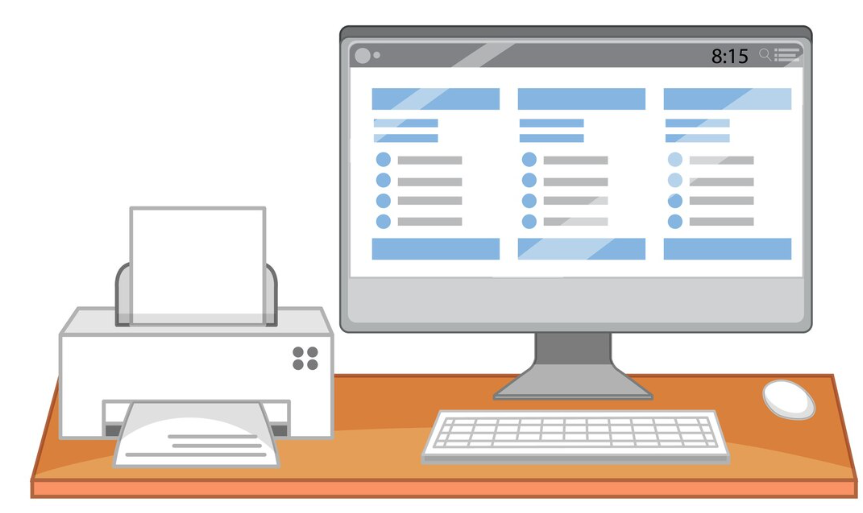
To connect your printer to a computer, turn on the printer and plug it into the computer using a USB cable or connect both devices to the same WiFi network. Open printer settings, select “Add a Printer,” and follow on-screen instructions. Install the latest printer drivers if required.
How to Connect Printer to Computer: Complete Step-by-Step Guide
Connecting a printer to your computer is essential for printing documents, photos, school projects, and office files. Whether you are setting up a new printer or reconnecting an existing one, the process is simple when you follow the correct steps. You can connect a printer to a computer using a USB cable (wired connection) or through WiFi (wireless connection).
This complete guide explains how to connect a printer to a computer on Windows and Mac, including troubleshooting tips and frequently asked questions.
Things You Need Before Connecting
- A powered-on printer
- Computer or laptop
- USB cable (for wired setup)
- WiFi network details (for wireless setup)
- Latest printer driver (if required)
Method 1: Connect Printer to Computer Using USB Cable (Wired Setup)
Step 1: Turn On the Printer
Plug the printer into a power outlet and press the power button.
Step 2: Connect USB Cable
Insert one end of the USB cable into the printer and the other end into your computer’s USB port.
Step 3: Automatic Driver Installation
Most modern computers automatically detect the printer and install basic drivers. Wait for installation to complete.
Step 4: Add Printer Manually (If Needed)
On Windows:
- Open Settings.
- Click Devices.
- Select Printers & Scanners.
- Click Add a Printer or Scanner.
- Select your printer and click Add Device.
On Mac:
- Open System Settings.
- Click Printers & Scanners.
- Select Add Printer.
- Choose your printer from the list.
- Click Add.
Method 2: Connect Printer to Computer via WiFi (Wireless Setup)
Wireless setup allows printing without cables and enables multiple devices to use the same printer.
Step 1: Connect Printer to WiFi
- Go to your printer’s Network or Wireless Settings.
- Select Wireless Setup Wizard.
- Choose your WiFi network name.
- Enter the WiFi password.
- Confirm connection.
Step 2: Add Printer on Windows
- Open Settings.
- Click Printers & Scanners.
- Select Add a Printer or Scanner.
- Choose the wireless printer from the list.
- Click Add Device.
Step 3: Add Printer on Mac
- Open System Settings.
- Select Printers & Scanners.
- Click Add Printer.
- Select the printer under the network tab.
- Click Add.
Method 3: Install Printer Driver Manually
If your computer does not detect the printer automatically:
- Visit the official printer manufacturer’s website.
- Search for your printer model.
- Download the latest driver compatible with your operating system.
- Install the driver.
- Restart your computer.
Installing the correct driver ensures proper communication between the printer and computer.
How to Set Printer as Default
On Windows:
- Go to Printers & Scanners.
- Select your printer.
- Click Manage.
- Select Set as Default.
On Mac:
- Open Printers & Scanners.
- Select your printer from the list.
- Set it as the default printer.
Troubleshooting: Printer Not Connecting to Computer
1. Restart Devices
Turn off the printer and computer, wait 30 seconds, then restart both devices.
2. Check USB Cable
Try a different USB port or cable if the printer is not detected.
3. Check WiFi Connection
Ensure both printer and computer are connected to the same WiFi network.
4. Update Printer Drivers
Outdated drivers can prevent proper connection. Install the latest version.
5. Run Printer Troubleshooter (Windows)
Go to Settings → System → Troubleshoot → Printer Troubleshooter.
Tips for Smooth Printer Setup
- Keep printer firmware updated.
- Use original cables and accessories.
- Ensure stable power supply.
- Keep printer within WiFi range.
Frequently Asked Questions (FAQs)
1. Why is my printer not connecting to my computer?
This may be caused by faulty cables, incorrect WiFi settings, outdated drivers, or disabled printer services. Restart devices and reinstall drivers to resolve the issue.
2. Can I connect my printer to a computer without a USB cable?
Yes, you can connect via WiFi if your printer supports wireless connectivity. Both devices must be on the same network.
3. Do I need to install printer drivers?
Yes, drivers are necessary for proper communication between the printer and computer. Most systems install them automatically, but manual installation may sometimes be required.
4. How do I reconnect my printer after changing WiFi?
Open printer network settings, select the new WiFi network, enter the password, and add the printer again on your computer.
5. Why is my printer connected but not printing?
Check if the printer is set as default, ensure it is not offline, clear the print queue, and verify ink and paper levels.
6. Can multiple computers use the same printer?
Yes, if the printer is connected via WiFi, multiple computers on the same network can access and use it.
7. How long does printer setup take?
Printer setup usually takes 5–15 minutes, depending on the connection type and driver installation process.
Conclusion
Connecting a printer to a computer is a straightforward process when done correctly. Whether using a USB cable or wireless connection, following proper installation steps ensures smooth setup. Always keep drivers updated and verify network settings to avoid connection problems. With this complete guide, you can confidently connect your printer and start printing without issues.