
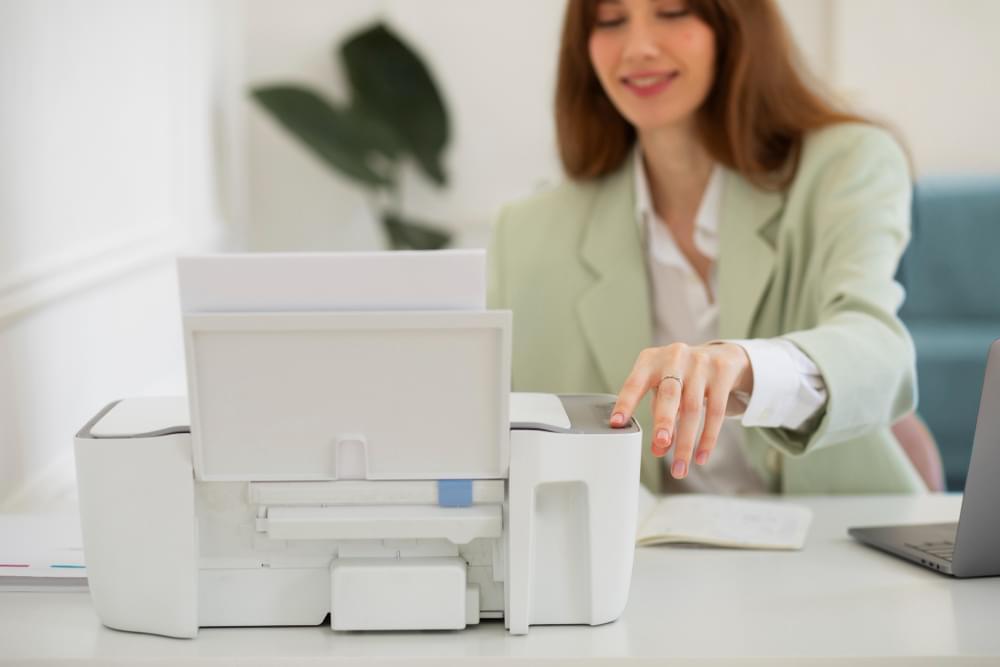
To connect your printer to WiFi, turn on the printer and open its network or wireless settings menu. Select your WiFi network name, enter the password, and confirm. Make sure your computer or phone is on the same network. Install or update the printer driver if prompted.
How to Connect Printer to WiFi: Complete Step-by-Step Guide
Connecting your printer to WiFi allows you to print wirelessly from your computer, laptop, tablet, or smartphone without using cables. Wireless printing makes your workspace cleaner, more flexible, and more efficient. Whether you are setting up a new printer or reconnecting an existing one, this complete guide will help you connect your printer to WiFi easily.
Benefits of Connecting a Printer to WiFi
- Print from multiple devices
- No need for USB cables
- Print from smartphones and tablets
- Place printer anywhere within WiFi range
- Easy sharing in home or office networks
Before You Begin
Before connecting your printer to WiFi, make sure:
- Your WiFi router is turned on and working properly.
- You know your WiFi network name (SSID).
- You know your WiFi password.
- Your printer is powered on.
- Your computer or phone is connected to the same WiFi network.
Method 1: Connect Printer to WiFi Using Control Panel (Recommended)
Most modern printers come with a built-in display screen that allows direct wireless setup.
- Turn on your printer.
- Go to the printer’s Settings or Network menu.
- Select Wireless Setup Wizard or WiFi Setup.
- Choose your WiFi network name from the list.
- Enter your WiFi password.
- Confirm and wait for connection confirmation.
Once connected, the wireless indicator light will turn solid or display “Connected.”
Method 2: Connect Printer to WiFi Without Screen (Using WPS)
If your printer does not have a display screen, you can use the WPS (WiFi Protected Setup) method.
- Turn on your printer.
- Press and hold the Wireless button on the printer until it starts blinking.
- Press the WPS button on your WiFi router within 2 minutes.
- Wait for the printer to connect automatically.
When the wireless light becomes steady, the connection is successful.
Method 3: Connect Printer to WiFi Using Computer (Windows)
- Open Control Panel.
- Click Devices and Printers.
- Select Add a Printer.
- Choose your printer from the list.
- Follow on-screen instructions to complete setup.
If the printer is not listed, install the latest driver from the printer manufacturer’s website.
Method 4: Connect Printer to WiFi Using Mac
- Open System Settings.
- Click Printers & Scanners.
- Select Add Printer.
- Choose your printer from the network list.
- Click Add to complete setup.
How to Connect Printer to WiFi Using Smartphone
Many printers support mobile printing through apps.
- Download the official printer app from the App Store or Play Store.
- Open the app and select Add Printer.
- Follow setup instructions.
- Ensure both devices are on the same WiFi network.
Troubleshooting: Printer Not Connecting to WiFi
1. Restart Devices
Restart your printer, router, and computer to refresh network settings.
2. Check WiFi Password
Ensure you are entering the correct WiFi password.
3. Move Printer Closer to Router
Weak signals can interrupt wireless setup.
4. Reset Printer Network Settings
Restore network settings to default and reconnect.
5. Update Printer Drivers
Install the latest driver version for better compatibility.
How to Confirm Printer is Connected to WiFi
- Check wireless light indicator.
- Print a network configuration page.
- Verify printer appears in devices list on computer.
Tips for Stable Wireless Printing
- Keep firmware updated.
- Place printer within WiFi range.
- Avoid network congestion.
- Use strong and secure passwords.
Frequently Asked Questions (FAQs)
1. Why is my printer not connecting to WiFi?
Your printer may not connect due to incorrect password, weak signal, outdated drivers, or router issues. Restart devices and re-enter network credentials carefully.
2. Can I connect my printer to WiFi without a USB cable?
Yes, most modern printers support wireless setup using the control panel or WPS method without needing a USB cable.
3. How do I reconnect my printer to a new WiFi network?
Open the printer’s network settings, select wireless setup, choose the new network, and enter the updated password.
4. Why does my printer disconnect from WiFi frequently?
Frequent disconnections may be caused by weak signals, router problems, outdated firmware, or network interference.
5. Do I need to install drivers after connecting to WiFi?
Yes, installing the correct printer driver ensures proper communication between your computer and the printer.
6. How can I print from my phone after connecting to WiFi?
Install the official printer app and ensure both devices are on the same network to print wirelessly.
7. What is WPS in printer WiFi setup?
WPS (WiFi Protected Setup) is a quick connection method that allows devices to connect without entering a password manually.
Conclusion
Connecting your printer to WiFi is simple if you follow the correct steps. Whether using the control panel, WPS button, computer setup, or mobile app, wireless printing improves convenience and productivity. If issues occur, basic troubleshooting steps such as restarting devices, checking passwords, and updating drivers usually resolve the problem quickly.
Once successfully connected, you can enjoy seamless wireless printing from any compatible device on your network.