
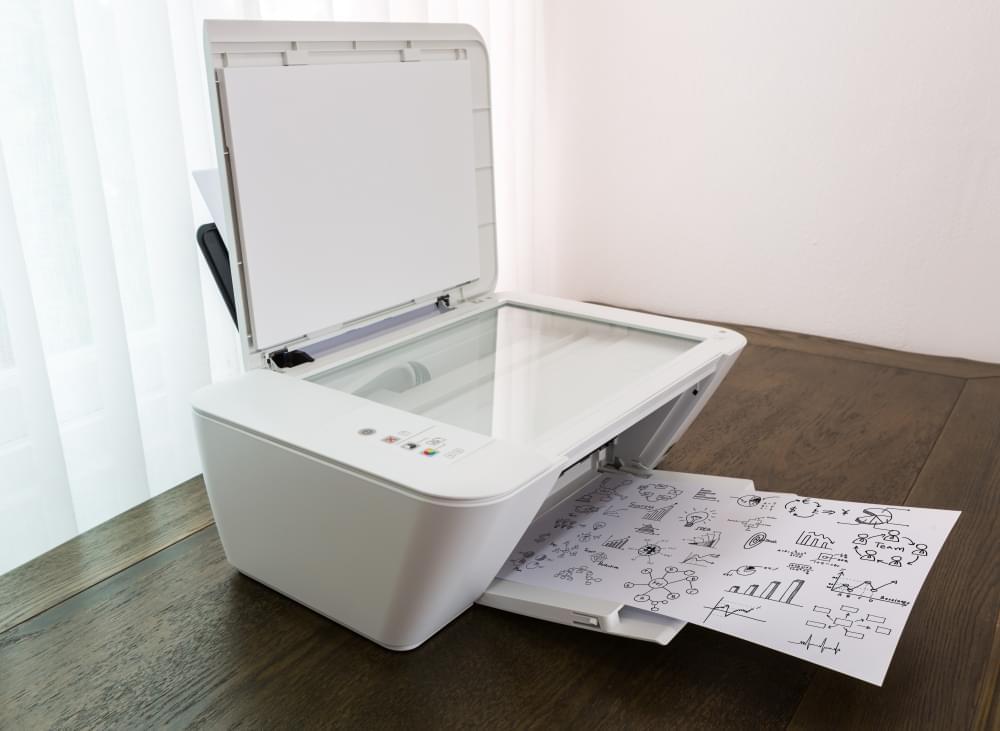
If your printer is not printing anything, check basic issues first. Ensure the printer is powered on, properly connected, and has enough paper and ink or toner. Clear any print queue errors, restart the printer and computer, and update drivers. Also, verify the correct printer is set as default.
Printer Not Printing: Causes, Fixes, and Complete Troubleshooting Guide
A printer not printing is one of the most common and frustrating technical problems faced by home users, students, and office professionals. You may click “Print,” see the document in the queue, and yet nothing comes out of the printer. Whether you use an inkjet or laser printer, this issue can occur for many different reasons.This complete guide explains why your printer is not printing and provides step-by-step solutions to fix the problem. From simple connection errors to advanced driver issues, we will cover everything in detail so you can get your printer working again.
Common Reasons Why Your Printer Is Not Printing
Before jumping into solutions, it is important to understand the most common causes behind printing problems:
- Printer is offline
- Loose or faulty cable connection
- WiFi connectivity issues
- Empty ink or toner cartridges
- Paper jams
- Outdated or corrupted printer drivers
- Stuck print queue
- Incorrect default printer selection
- Software or operating system conflicts
Now let’s go through each solution step-by-step.
1. Check Basic Printer Hardware
Ensure the Printer Is Powered On
First, check whether your printer is turned on. Look for power lights or display panel activity. If nothing is lit, check the power cable and wall socket.
Check Cable Connections
If you are using a USB printer, ensure the USB cable is securely connected to both the printer and the computer. Try switching to another USB port if necessary.
Check WiFi Connection (For Wireless Printers)
If your printer connects through WiFi:
- Make sure the printer is connected to the correct wireless network.
- Restart your router.
- Ensure your computer is connected to the same WiFi network.
2. Verify the Printer Is Set as Default
If your printer is not set as the default printer, your documents may be sent to another device.
On Windows:
- Open Control Panel.
- Click Devices and Printers.
- Right-click your printer.
- Select “Set as default printer.”
On Mac:
- Open System Settings.
- Click Printers & Scanners.
- Select your printer.
- Set it as default.
3. Clear the Print Queue
Sometimes a stuck print job blocks new documents from printing.
Steps to Clear Print Queue (Windows)
- Open Control Panel.
- Click Devices and Printers.
- Double-click your printer.
- Cancel all documents.
After clearing, restart both the printer and computer.
4. Check Ink or Toner Levels
If your printer has low or empty ink cartridges, it may refuse to print.
- Open the printer control panel.
- Check ink or toner levels.
- Replace empty cartridges.
Even if cartridges are not fully empty, dried ink or clogged printheads can prevent printing.
5. Check for Paper Jams
Paper jams are a common reason for printing issues.
- Turn off the printer.
- Open all accessible panels.
- Remove stuck paper carefully.
- Reload paper properly.
Always remove paper slowly to avoid damaging internal components.
6. Restart Printer Spooler Service (Windows)
The print spooler manages print jobs. If it stops working, printing may fail.
- Press Windows + R.
- Type services.msc and press Enter.
- Find “Print Spooler.”
- Right-click and select Restart.
This often fixes stuck printing issues instantly.
7. Update or Reinstall Printer Drivers
Outdated or corrupted drivers are a major reason for printer problems.
To Update Drivers:
- Open Device Manager.
- Expand Printers.
- Right-click your printer.
- Select Update driver.
To Reinstall Drivers:
- Uninstall the printer from Devices and Printers.
- Restart your computer.
- Download the latest driver from the manufacturer’s website.
- Install and reconnect the printer.
8. Check Printer Status (Offline Mode)
If your printer shows “Offline,” it will not print.
Fix Printer Offline (Windows)
- Open Devices and Printers.
- Right-click your printer.
- Uncheck “Use Printer Offline.”
9. Test Print a Document
After troubleshooting, try printing a test page:
- Go to printer properties.
- Select “Print Test Page.”
If the test page prints successfully, the issue may be software-related rather than hardware-related.
10. Advanced Troubleshooting
Run Built-in Troubleshooter (Windows)
- Go to Settings.
- Click Update & Security.
- Select Troubleshoot.
- Run Printer Troubleshooter.
Reset Printer to Factory Settings
If nothing works, resetting the printer may fix configuration errors. Refer to your printer manual for reset steps.
Printer Not Printing Black or Color
If your printer prints blank pages or skips certain colors:
- Clean printheads.
- Align cartridges.
- Replace dried cartridges.
Wireless Printer Not Printing
If your wireless printer is not printing:
- Reconnect to WiFi network.
- Restart router.
- Forget and reconnect network settings.
- Reinstall wireless drivers.
Printer Not Printing From Phone
Ensure:
- Printer supports mobile printing.
- Phone and printer are on same WiFi.
- Correct printing app is installed.
When to Contact Support
If you have tried all solutions and your printer is still not printing, consider:
- Hardware failure
- Damaged motherboard
- Internal component issues
In such cases, contact professional printer support or service center.
Preventive Tips to Avoid Printing Problems
- Regularly update printer drivers.
- Keep firmware updated.
- Use original ink cartridges.
- Print at least once a week to prevent ink drying.
- Keep printer clean and dust-free.
Conclusion
A printer not printing can result from simple issues like loose cables or complex problems like corrupted drivers. By following the step-by-step troubleshooting methods outlined in this guide, you can diagnose and fix most printing problems yourself.
Always begin with basic checks such as power, connection, and paper supply before moving to advanced solutions like restarting the spooler or reinstalling drivers. Regular maintenance and timely updates can help prevent most printer issues in the future.
With proper troubleshooting and care, your printer should return to normal operation quickly and efficiently.