
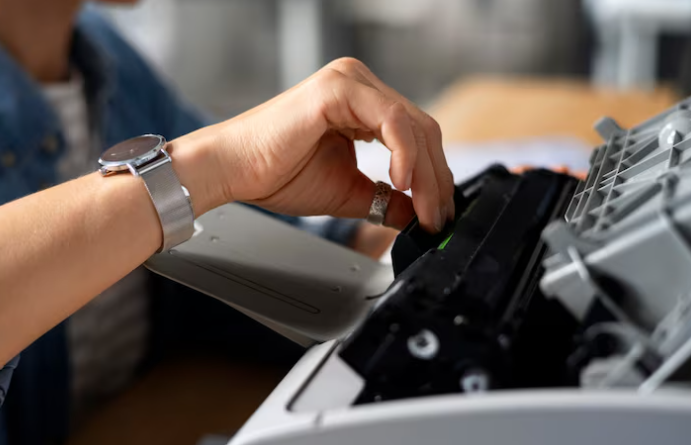
Printer troubleshooter helps identify and fix common printing problems such as printer offline errors, print queue issues, driver conflicts, and connectivity failures. Run the built-in troubleshooting tool in your system settings to detect issues automatically. Restart devices, update drivers, and check connections to restore smooth and reliable printing performance quickly.
Printer Troubleshooter – Complete Guide to Fix Common Printing Problems
A printer troubleshooter is a built-in or manual diagnostic tool that helps detect and fix common printer issues such as printer offline errors, driver problems, print spooler failures, and connectivity issues. Whether you use Windows or Mac, troubleshooting tools can automatically resolve many printing problems without advanced technical knowledge.
What Is a Printer Troubleshooter?
A printer troubleshooter is a utility that scans your printer and computer for errors. It identifies problems like incorrect settings, outdated drivers, disconnected cables, or network failures and attempts to fix them automatically.
Modern operating systems include built-in troubleshooting tools that simplify printer repair.
Common Printer Problems a Troubleshooter Can Fix
- Printer showing offline
- Printer not responding
- Printer not printing
- Paper jam errors
- Driver installation issues
- Print spooler service errors
- Wireless connectivity problems
- Slow printing
How to Run Printer Troubleshooter on Windows
Method 1: Using Windows Settings
- Click the Start button.
- Go to Settings.
- Select System → Troubleshoot.
- Click Other troubleshooters.
- Select Printer and click Run.
Windows will scan for issues and attempt to fix them automatically.
Method 2: Control Panel Method
- Open Control Panel.
- Click Devices and Printers.
- Right-click your printer.
- Select Troubleshoot.
How to Troubleshoot Printer on Mac
Mac does not have a single “printer troubleshooter” button, but you can resolve issues manually.
Step 1: Check Printer Status
Go to Apple Menu → System Settings → Printers & Scanners.
Step 2: Reset Printing System
- Right-click in the Printers list.
- Select Reset Printing System.
- Re-add your printer.
Step 3: Check Print Queue
Clear any stuck print jobs in the queue.
Manual Troubleshooting Steps
1. Check Printer Connection
- Ensure USB cable is securely connected.
- If wireless, verify WiFi connection.
- Restart router if necessary.
2. Restart Devices
Turn off the printer and computer. Wait 30 seconds and turn them back on.
3. Update or Reinstall Printer Drivers
Outdated drivers cause many issues. Download the latest drivers from the printer manufacturer’s website.
4. Clear Print Spooler
- Press Windows + R.
- Type services.msc.
- Restart the Print Spooler service.
5. Set Printer as Default
Go to Printers & Scanners and select your printer as default.
Fix Printer Offline Error
- Open Printers & Scanners.
- Select your printer.
- Click Open Queue.
- Uncheck Use Printer Offline.
Fix Wireless Printer Issues
- Ensure both printer and computer are on the same network.
- Reconnect printer to WiFi.
- Restart modem and router.
- Update printer firmware.
Advanced Troubleshooting
1. Check Firewall Settings
Sometimes firewall or antivirus blocks printer communication.
2. Assign Static IP Address
Set a static IP to avoid network conflicts.
3. Check Printer Hardware
- Remove paper jams.
- Check ink or toner levels.
- Clean printheads.
Benefits of Using Printer Troubleshooter
- Saves time
- Automatically detects issues
- No technical skills required
- Improves printer performance
- Prevents recurring errors
Frequently Asked Questions (FAQs)
1. What does printer troubleshooter do?
It scans your system for printer-related problems and attempts to fix them automatically.
2. Why is my printer not responding?
This may be due to connection issues, outdated drivers, or print spooler errors.
3. How do I fix printer offline error?
Disable “Use Printer Offline” in printer settings and ensure proper network connection.
4. Can printer troubleshooter fix driver problems?
It can detect driver issues, but you may need to manually update or reinstall drivers.
5. Why are print jobs stuck in queue?
This happens due to print spooler errors or corrupted print jobs. Restart the spooler service.
6. Does Mac have a printer troubleshooter?
Mac does not have a single tool but allows resetting the printing system.
7. How often should I update printer drivers?
Update drivers whenever you face issues or after system updates.
8. What if troubleshooter cannot fix the issue?
Try manual troubleshooting steps or contact printer customer support.
9. Is wireless printing harder to troubleshoot?
Wireless printers may face network issues, but most problems can be fixed easily.
10. Can a virus affect printer performance?
Yes, malware or firewall restrictions may block printer communication.
Conclusion
A printer troubleshooter is an essential tool for resolving common printing problems quickly. Whether you use Windows or Mac, built-in tools and manual troubleshooting methods can fix most issues without professional help. By following the steps in this guide, you can diagnose and repair printer errors efficiently and maintain smooth printing performance.